





Transceiver modules require proper installation
 Nov 05, 2025|
Transceiver modules convert electrical signals into optical or copper-based transmissions within network infrastructure. These hot-swappable components demand precise installation procedures to prevent physical damage, maintain signal integrity, and ensure network reliability.
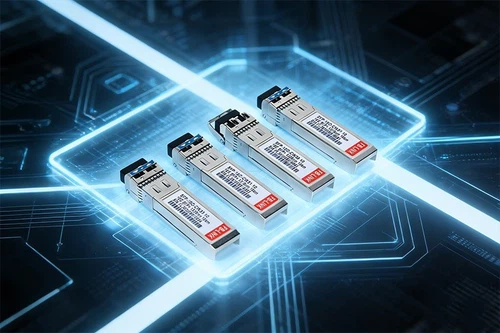
Why Transceiver Modules Demand Installation Precision
Improper installation causes approximately 30% of transceiver module failures during the assembly and deployment phase. Misalignment during insertion bends connector pins, rendering the module unusable. ESD exposure damages internal circuits, while contaminated optical ports create signal degradation. Each installation error cascades through your network infrastructure, affecting performance and creating expensive troubleshooting cycles.
The physical architecture of transceiver modules makes them vulnerable to installation mistakes. SFP, SFP+, QSFP, and QSFP-DD variants feature delicate pin arrays measuring fractions of a millimeter in tolerance. A single bent pin disrupts the electrical pathway between the module and host device. Optical transceiver modules add another layer of complexity with laser diodes sensitive to both mechanical shock and electrostatic discharge.
Critical Pre-Installation Requirements for Transceiver Modules
Before handling any transceiver module, establish ESD protection. Wear a wrist strap connected to a proper ground point on your chassis or rack. Work on an antistatic mat and keep transceiver modules in their protective packaging until installation. Static electricity accumulates in dry environments and discharges through sensitive components, causing immediate failure or gradual performance degradation.
Verify compatibility between your transceiver and host device. Different manufacturers implement proprietary identification systems. Cisco modules use Quality ID technology, while other vendors employ MSA-compliant coding. Incompatible modules either fail to initialize or operate with degraded performance. Check your equipment manufacturer's compatibility matrix before purchasing third-party transceivers.
Inspect the transceiver for physical damage. Examine the optical bores or copper connectors for contamination. Look for bent pins on the electrical interface. Check that bail clasps, mylar tabs, or actuator buttons move freely. Any visible damage justifies rejecting the module rather than risking installation failure.
Module Socket Orientation
Device manufacturers configure SFP sockets in either latch-up or latch-down orientations. This variance means you cannot assume universal installation procedures across all equipment. Juniper, Cisco, and other vendors document socket orientation in their hardware installation guides.
For top-row sockets, bail clasps typically face upward when properly latched. Bottom-row installations reverse this orientation. Misreading socket direction causes force-fitting attempts that bend pins. Before sliding any module into position, identify the TX and RX markings on the faceplate. These indicators confirm proper orientation and prevent backward insertion.
The Alignment and Insertion Process
Position the transceiver in front of the empty socket with both hands. Verify that connectors face the chassis and latching mechanisms align with socket guides. The module should enter the socket smoothly without resistance. Any binding indicates misalignment.
Slide the transceiver gently until it contacts the socket's electrical connector. Do not force insertion. Proper alignment allows the module to glide into position with minimal pressure. Once the module reaches the connector, press firmly on the faceplate with your thumb. For actuator-button latches, press both the faceplate and button simultaneously to ensure full seating.
Verify proper installation by attempting removal without releasing the latch. Grasp the module's sides and pull gently. A properly seated transceiver resists removal until you activate its latching mechanism. If the module pulls free, remove it completely and repeat the installation process with increased thumb pressure.
Latch Mechanisms and Their Requirements
Four primary latching systems secure transceivers in network equipment. Mylar tab latches use a flexible pull-tab that extends from the module body. Bail clasp mechanisms employ a hinged handle that pivots from vertical to horizontal position. Actuator button latches require simultaneous pressure on both the button and module face. Slide tab systems use a push-action mechanism along the module's base.
Each latch type demands specific handling during installation and removal. Bail clasps must align vertically during insertion and pivot horizontally for locking. Forcing a bail clasp against its natural movement range damages both the latch and socket. Actuator buttons need firm, even pressure distributed across the button surface and module front to engage properly.

Dust Protection and Optical Port Management
Keep dust plugs installed on optical transceivers until the moment you connect fiber cables. Contamination ranks among the top three causes of optical link failure. Even microscopic particles on connector ferrules or optical bores scatter light signals, increasing bit error rates and reducing effective transmission distance.
Remove dust plugs from fiber optic cables first. Inspect and clean the cable connector end-faces using approved lint-free wipes and optical-grade cleaning solution. Never use compressed air alone, as it redistributes contaminants rather than removing them. Fiber inspection microscopes verify cleanliness by revealing scratches, contamination, or damage invisible to the naked eye.
After confirming clean cable connectors, remove the transceiver's dust plug immediately before insertion. This timing minimizes the period when sensitive optical components face environmental exposure. Orient fiber connectors properly during insertion. LC connectors click audibly when seated correctly. MPO connectors on 40G and 100G modules feature keyed designs preventing incorrect insertion.
Cable Connection Sequence
Never install or remove transceivers with cables attached. Connected cables create mechanical stress on both the module and cable connector. This stress bends optical ferrules, damages cable connector housings, and prevents proper latching. Disconnect all cables before transceiver removal or installation.
Wait at least 10 seconds after removing a transceiver before installing a replacement module. This interval allows the host device to complete deregistration processes and reset the port's electrical state. Hot-swapping without proper timing can trigger detection errors or port initialization failures.
When connecting cables, support them properly to prevent their weight from stressing the transceiver connection. Use cable management brackets positioned every 150mm along cable runs. Heavy InfiniBand and high-density MPO cables require particular attention, as unsupported weight causes connector misalignment and intermittent connections.
Environmental Factors Affecting Transceiver Modules
Transceiver modules generate heat during operation. Commercial-grade modules specify operating temperatures from 0°C to 70°C, while industrial variants extend this range to -40°C to 85°C. Temperature monitoring data shows that deployments incorporating environmental monitoring experience 15% fewer thermally-induced failures.
Verify adequate cooling in high-density deployments. Multiple transceiver modules in adjacent ports compound heat generation. Poor ventilation accelerates laser degradation and reduces module lifespan. Data center installations should maintain ambient temperatures within manufacturer specifications and provide sufficient airflow across all installed modules.
Humidity control prevents corrosion on electrical contacts. Excessive moisture creates conductive paths between pins, causing signal integrity problems. Conversely, low humidity increases static electricity accumulation. Maintain humidity levels between 20% and 80% relative humidity for optimal module protection.
Port Status Verification
After installation and cable connection, observe the port status LED. Green illumination indicates successful link establishment between the transceiver and target device. Amber coloring appears during the spanning tree protocol's 30-second topology discovery process before transitioning to green.
No LED illumination suggests multiple possible issues. The target device may not have power. Cable problems could prevent signal transmission. The transceiver might be incompatible with the host device. LED specifications vary by manufacturer, so consult your equipment's documentation for specific indicator meanings.
Use diagnostic commands to verify transceiver detection and operational status. Network operating systems display module information including vendor identification, part numbers, temperature readings, and optical power levels. Transceivers supporting Digital Optical Monitoring (DOM) provide transmit and receive power measurements useful for troubleshooting signal quality issues.
Common Installation Mistakes
Installing cables before securing the transceiver represents the most frequent error. This sequence creates leverage that prevents proper module seating and damages both components. Always complete transceiver installation and verification before connecting any cables.
Forcing modules into sockets causes immediate pin damage. Resistance during insertion indicates misalignment, not the need for increased pressure. Stop, withdraw the module completely, verify orientation, and restart the insertion process.
Ignoring ESD protection accumulates invisible damage. Even if a module functions initially after unprotected handling, latent ESD damage reduces lifespan and creates intermittent failures. Field data indicates that firmware-related issues account for 25% of operational disruptions, but ESD damage often mimics firmware problems during troubleshooting.
Reusing contaminated dust plugs defeats optical protection. Dust plugs accumulate particles during storage and handling. Use new, clean dust plugs or store removed plugs in sealed containers. Clean dust plugs with optical-grade solvents before reuse.
Module Removal Procedures
Disconnect all cables from the transceiver before attempting removal. Install dust plugs immediately on both the module and cable connectors to prevent contamination during the disconnected period.
Attach your ESD wrist strap before touching the module. Activate the latch release mechanism appropriate for your module type. For bail clasp latches, pivot the handle from horizontal to vertical position. Actuator buttons require pressing the button to release the locking mechanism. Mylar tabs pull outward to disengage the module.
Grasp the module body, not the latch mechanism. Pull straight out along the module's axis without twisting or angling. Place removed modules immediately into antistatic bags or on antistatic mats. Never set modules on conductive surfaces or leave them unprotected.
Compatibility Verification Methods
Check transceiver compatibility before deployment, not after installation. Equipment vendors maintain compatibility matrices listing approved module part numbers for each device model. Third-party modules should explicitly state compatibility with your equipment brand and model.
Some manufacturers restrict port functionality when detecting non-approved modules. Cisco devices display "unsupported transceiver" messages and may disable certain features. While many third-party modules claim 100% compatibility, verify this through testing before large-scale deployment.
Wavelength matching matters for dual-fiber and BiDi transceivers. Standard 1G modules use 850nm, 1310nm, or 1550nm wavelengths. BiDi transceivers must use complementary wavelength pairs: TX1310/RX1550nm on one end requires TX1550/RX1310nm on the opposite end. Mismatched wavelengths prevent link establishment despite proper physical installation.
Firmware and Software Considerations
Keep host device firmware current. Manufacturers release updates addressing transceiver compatibility issues and improving module detection algorithms. Firmware updates can resolve problems with newer module revisions that weren't available when your device shipped.
Some transceivers include user-updatable firmware. Check manufacturer websites for firmware updates addressing performance issues or adding new features. Follow vendor-specific update procedures, as incorrect firmware installation can permanently disable a module.
Network operating system software versions affect transceiver compatibility. Older software releases may not recognize newer module types. For example, devices running legacy code might not detect SFP28 or QSFP-DD modules even though the physical port accepts them.
Documentation and Maintenance
Record all transceiver module installations including module type, serial number, port location, installation date, and installed firmware version. This documentation streamlines troubleshooting when problems occur months or years after deployment.
Implement a regular inspection schedule. Check modules for excessive temperature readings using DOM functions. Monitor optical power levels for gradual degradation indicating imminent failure. Track error rates that might indicate contamination or mechanical issues.
Label ports and cables clearly. Use consistent labeling schemes identifying both ends of fiber connections. This practice reduces errors during maintenance and speeds troubleshooting. Document any non-standard configurations or special requirements for specific transceivers.
Troubleshooting Installation Issues
Module not detected typically results from seating problems, compatibility issues, or failed modules. Reseat the transceiver following proper procedures. Verify compatibility with your device model and software version. Test with a known-working module to isolate defective hardware.
Link failure despite proper LED status suggests cable or far-end problems. Verify cable type matches the transceiver specification. Single-mode modules require single-mode fiber; multimode modules need multimode cable. Check that cable length doesn't exceed the module's specified distance rating.
Intermittent connectivity indicates mechanical issues. Inspect for loose modules that haven't latched properly. Check cable connections for partial insertion. Look for contamination on optical connectors. Verify that cable weight isn't stressing the transceiver connection.
High error rates with established links point to optical quality problems. Clean all optical connections following proper procedures. Test cables with an optical loss test set to verify insertion loss within specifications. Replace any cable showing excessive loss or damage.
Frequently Asked Questions
Can I install transceiver modules while the device is powered on?
Most transceiver module types support hot-swapping, allowing installation and removal while the host device operates. However, disconnect all cables before removing or installing transceiver modules. Wait 10 seconds after removal before installing a replacement. Some older equipment models require power-down before transceiver changes.
How do I know if a transceiver is properly seated?
Attempt to remove the module without releasing its latch. Properly seated transceivers resist removal until you activate the latching mechanism. The port status LED should illuminate after cable connection, indicating the host device detected and initialized the module.
What causes bent pins on transceivers?
Misalignment during installation represents the primary cause. Forcing a module into the socket when it encounters resistance bends pins rather than properly seating the connector. Always verify correct orientation and ensure smooth insertion without applying excessive force.
Do I need special tools for transceiver installation?
Standard installation requires only proper ESD protection equipment. Some modules benefit from specialized extraction tools, particularly QSFP-DD and other high-density form factors in confined spaces. Never use metal objects to force modules into or out of sockets.
Installation Impact on Network Reliability
Proper transceiver installation affects network reliability far beyond the immediate installation moment. Correctly installed modules operate within specification for their rated lifespan, typically 5-10 years for quality components. Installation errors create immediate failures or gradual degradation that appears as mysterious intermittent problems.
The financial cost of installation errors extends beyond replacement modules. Network downtime during troubleshooting affects business operations. Technician time spent diagnosing problems caused by contamination or bent pins multiplies labor costs. Prevention through proper initial installation provides better return than remediation after failures occur.
Training technical staff on correct procedures reduces error rates. Organizations deploying hundreds or thousands of transceivers benefit significantly from standardized installation processes. Creating and following documented procedures ensures consistency across multiple technicians and locations.
Recommended Installation Workflow
Establish an ESD-protected workspace. Connect your wrist strap to a proper ground point and work on an antistatic mat. Gather the transceiver module, dust plugs, cleaning supplies, and any required cables before beginning.
Verify transceiver module compatibility with your host device using manufacturer documentation. Inspect the module for physical damage or contamination. Check that the socket is clean and free from debris.
Remove the transceiver module from its packaging only when ready for immediate installation. Verify correct orientation by identifying TX/RX markings and comparing with socket configuration. Hold the module by its sides, not by the optical ports or electrical connector.
Align the transceiver with the socket and gently slide it into position until it contacts the electrical connector. Press firmly on the faceplate to fully seat the module. Verify proper latching by attempting removal without releasing the latch mechanism.
Wait briefly for the host device to detect and initialize the transceiver. For optical modules, clean fiber cable connectors using proper techniques. Remove the transceiver's dust plug and immediately insert the cable connector. Secure cables using appropriate cable management.
Check port status LEDs and use diagnostic commands to verify successful installation and link establishment. Document the installation details including module serial number, port location, and installation date.
Following this systematic approach minimizes installation errors and ensures optimal transceiver performance throughout the module's service life.